SUNY Suffolk uses Microsoft 365 software. Get ready to use the M365 apps (Word, PowerPoint, Excel, etc.) for your academic work at Suffolk. You can learn more at the Microsoft 365 Training site.
As a student at Suffolk you can download Microsoft Office 365 Apps for FREE on up to five devices!
To access and download M365 and other Microsoft Apps:
1. Log in to the Suffolk Login Portal: Go to the College homepage at sunysuffolk.edu and click Login, or go directly to sunysuffolk.edu/login.
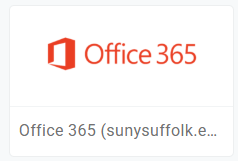
2. Click on the Office 365 tile
3. From here there are two options or you can use the direct link:
OPTION 1: VIA THE APPS SECTION
From the Apps section on the left-hand menu, locate the Install apps button in the top-right corner.
OPTION 2: USING THE SEARCH BAR
-
- Go to the Search section.
- Type “Install Office” into the search bar.
- The system will direct you to the appropriate area in My Account to complete the installation.
🔗 DIRECT LINK
Go directly to the installation page using this link: aka.ms/office-install
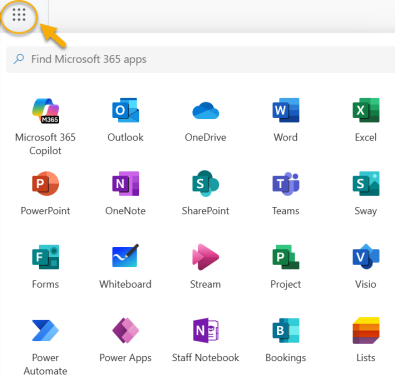
4. To access Microsoft apps online from any M365 app on a browser, go to the app launcher on the top left and click on the app you need.
5. To access the Desktop versions of Microsoft apps (i.e. Word, Excel, PowerPoint, Teams) search for the apps downloaded on your device and open them.
Note that the online version of Microsoft apps provides you with the basic functions. If you need to use more tools, you should use the desktop versions.
OneDrive is the Microsoft cloud storage app. You can store, share, and manage your files from this app and access them from any device, without the need for an external storage device such as a USB.
To access OneDrive:
1. Log in to the Suffolk Login Portal: Go to the College homepage at sunysuffolk.edu and click Login, or go directly to sunysuffolk.edu/login
2. Search and Click on the OneDrive tile
3. Once you have your files in OneDrive you can access them and open them with the online or the desktop apps. Simply go to the file, click on the three dots, click Open and Open in browser if you want to use the online version or Open in app if you want to work on the desktop app.

Microsoft Teams can be used to communicate and work collaboratively with a group of students or a class.
If you are part of a Team as a guest, watch the step-by-step video on how Sharks can access their guest profile on Microsoft Teams: Student Guest Account on MS Teams
To access Teams:
1. Log in to the Suffolk Login Portal: Go to the College homepage at sunysuffolk.edu and click Login, or go directly to sunysuffolk.edu/login
2. Search and Click on the Teams tile